
Welcome to ProjeQtOr new Forum. We migrated old forum to the new website.
You will find all your posts here, with your usual account.
Just one point : you’ll have to reinitialize your password. Use “Lost password” feature.

I have a small project, as shown below:
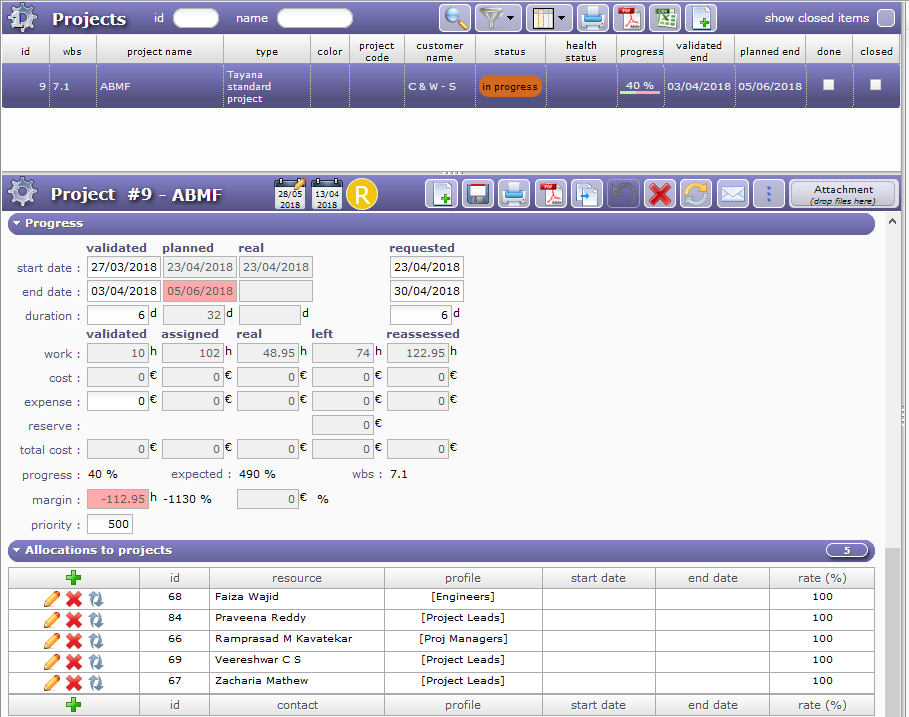
The project started and immediately got stalled, so it was not maintained in ProjeQtor.
Then the PM wanted to use ProjeQtor to manage it.
Because of the circumstances, we have to tell ProjeQtor that-
(a) The project actually started in the past
(b) Some of the tasks started on specific past dates,
(c) Certain amount of real work is done in some of those tasks in the past, and
Based on this data, we want ProjeQtor to re-assess the Left work in all tasks, and plan the execution of the remaining part of the project starting from today.
What is the actual method to execute each of these steps?
BTW I tried to enter a past date in the Validated start date column, but that task refuses to jump to that date.
I have ensured that the project's start date is sufficiently back-dated; so that is not the reason for this failure.
The screenshot shows that I tried to backdate a task by entering a past start date, but it does not move to past.
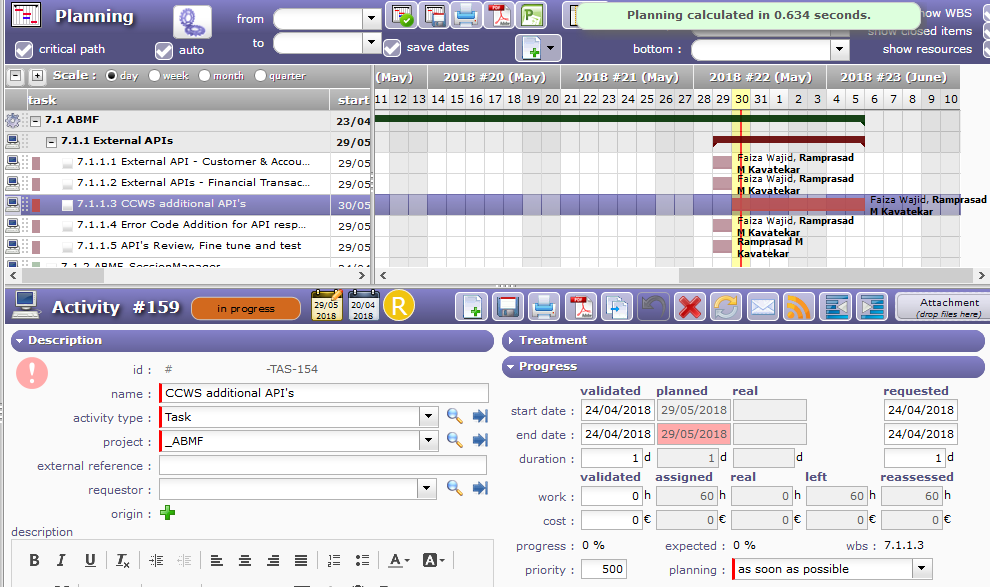
Apparently we are doing something wrong. Question is, how to correct that?

Planned date cannot be in the past if you don't calculate from past date
(change date of calculation)
Yes, IINW the ideas is to let ProjeQtor think that we are in the past, before the project started.
Thus ProjeQtor will calculate the Gantt chart normally (as if it is planning for the future).
Then I will feed the Real work allocation for some tasks.
So the elements will still show the remaining work as "Left" hours.
These left hours figures did not change during the long break.
So they are valid even today.
So, the next step is to change the calculation date to the present date.
In response, ProjeQtor will re-calculate when this remaining work will get done.
(This calculation will consider the present-day availability of those same resources.)
Please confirm?
If the above idea is correct, then there should be a control to set the date of calculation.
Where is this parameter available? I am unable to find it.
As I understand it, it must be project-specific, because if I change the definition of "TODAY()" globally, all projects will shift their As soon as possible type tasks to that backdated date!
When click on pop-up to run calculation, on pop-up where you select project(s) to calculate, you can change the "start planning" calculation date (default is "today")
When click on pop-up to run calculation, on pop-up where you select project(s) to calculate, you can change the "start planning" calculation date (default is "today")
Did you mean this-
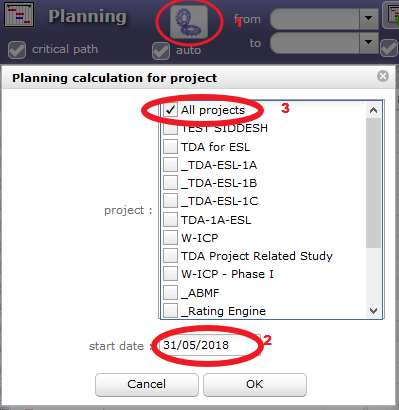
In other words,
1. Click on the Calculate button.
2. Set the start date field to a date that falls before the project actually started.
3. Ensure that the all projects check box is deselected (otherwise all their ASAP tasks will shift to past!)
4. Select the project where this past planning is to be done.
5. Press OK.
Please confirm?

Yes ! confirmed
I followed that step. To experiment, we chose a dummy project called "DEMO-TSS".
I am facing a problem, as described below:
After the back-dated re-calculation, the Gantt chart looks like this:
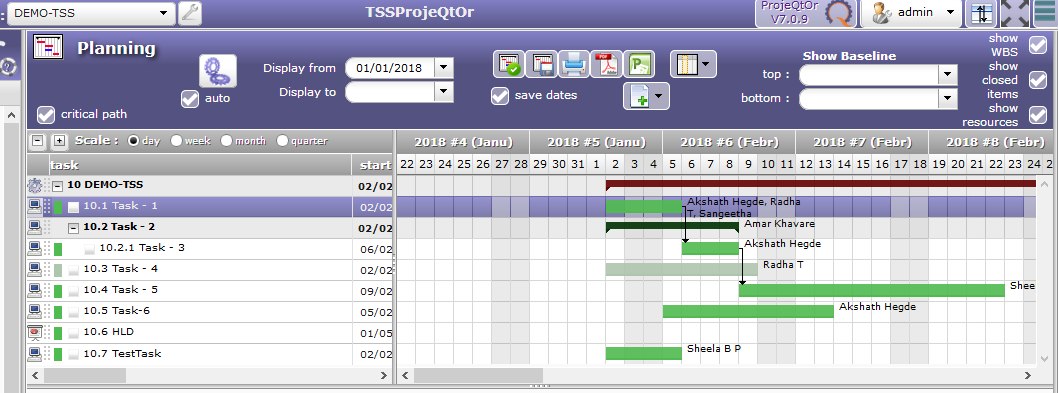
The next step was to enter the real work done by the resources for task#10.1, which begins at week#5 of 2018.
So I switched to the Real work allocation screen.
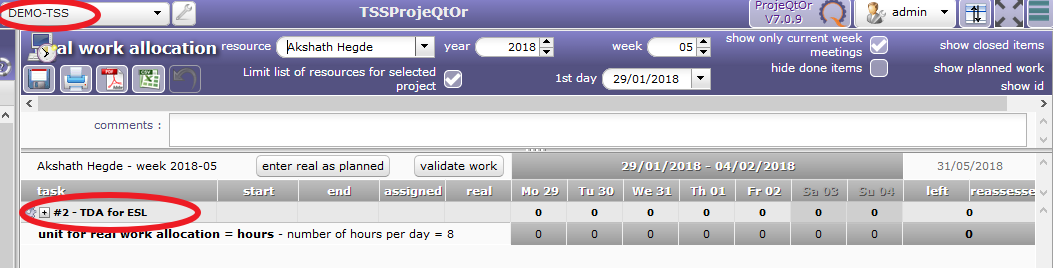
Then I selected week#5 of 2018, and one of the resources for task 10.1 (Akshath Hegde).
But the screen does not show task 10.1 for DEMO-TSS. [BUG#1].
I selected the other resources, but all of them have the same issue.
The screen has other issue also: Although the Project filter is set to DEMO-TSS, it actually shows an element from another project called TDA for ESL. [BUG#2]
As a result, I cannot enter real work for the DEMO-TSS project!
I can confirm that all resources are freely allocated to this project (the allocation start/finish dates are left blank), so the shift in dates does not affect their availability to this project.
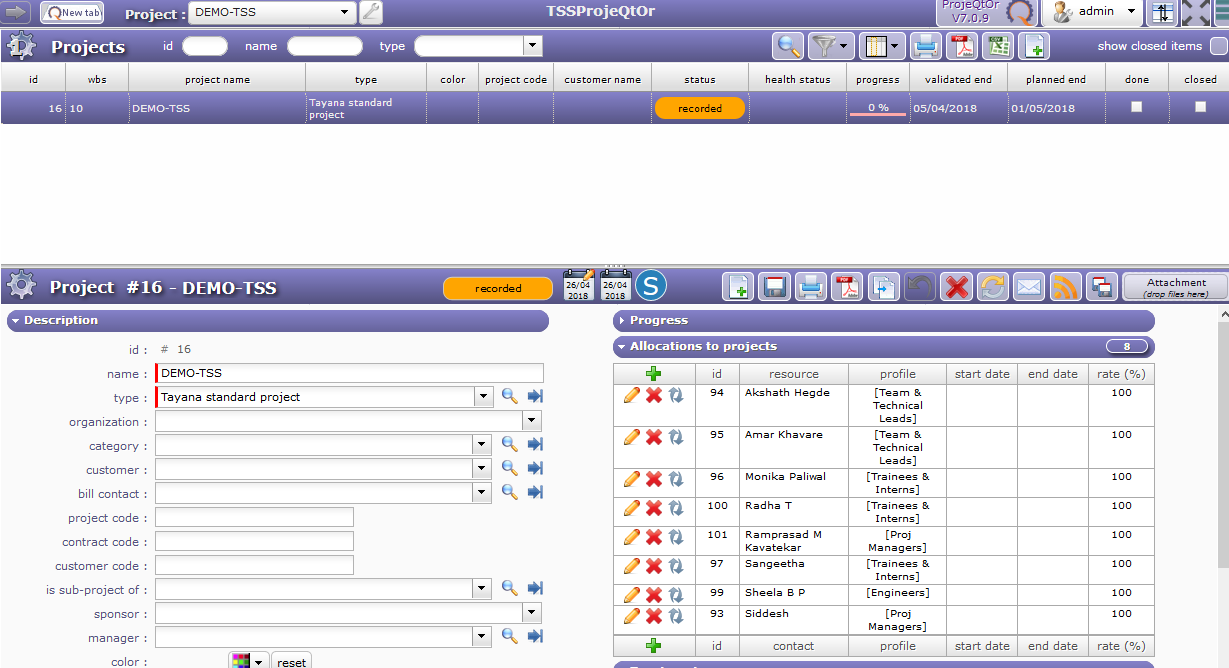
What could cause this?
hi.
To appear on the imputation screen, work assigned to the task must be indicated, while to appear on the schedule screen only the assignment is sufficient. On the real work allocation screen, the tasks of all projects with assigned jobs always appear. Without any assigned job, they do not appear.
Additional precision: On the real work allocation screen, the filter on the project does not work voluntarily regardless of the name of the project that appears. Only the "imputation" filters that are part of this screen work. The selected resource does have a view of all the projects on which it is assigned for and can thus qualify quickly its work for one or severals of them.
Start end and end date are simply the marks of a constraint DATE, ie between these two dates - ESPECIALLY - the resource will be assigned to the project at a desired assignment rate. It means also that the ressource is not allocated anymore to the project outside these dates. If yes, reallocate anothers new dates as wish following the same process. So, dates marks will appear as soon as a constraint date is created.
hi.
To appear on the imputation screen, work assigned to the task must be indicated, while to appear on the schedule screen only the assignment is sufficient.
Just to confirm my understanding: I am assuming that by "imputation screen", you mean the Real work allocation screen, and by "Schedule screen", you mean Planning screen.
On the real work allocation screen, the tasks of all projects with assigned jobs always appear. Without any assigned job, they do not appear.
Yes, I know. In this case, three people are assigned work for task#10.1, as shown in the screenshot below:
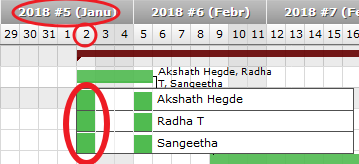
All three resources are supposed to work for 8 hours on 2nd Feb (week#5 of 2018).
But the Real work allocation screen does not show 8 hours assignment to any of the three resources.
In fact, the whole project itself is missing from the screen.
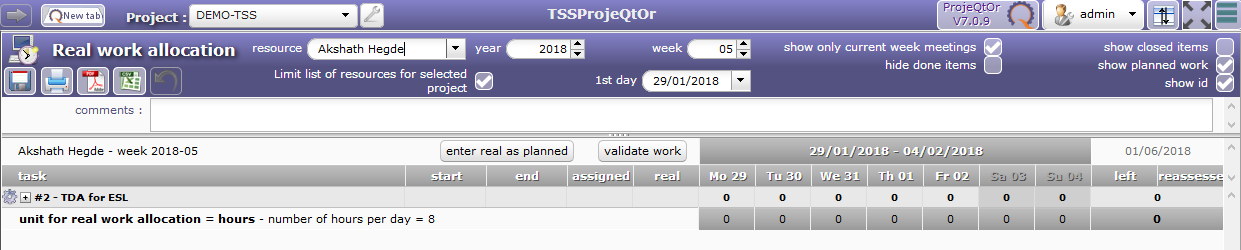
Further, the Real work allocation screen is supposed to show 7 hours of work on 3rd Feb (week#6).
But the same problem continues even in Week#6. [BUG#1]
Additional precision: On the real work allocation screen, the filter on the project does not work voluntarily regardless of the name of the project that appears. Only the "imputation" filters that are part of this screen work. The selected resource does have a view of all the projects on which it is assigned for and can thus qualify quickly its work for one or severals of them.
In that case the GUI is misleading! If a control is not effective, it must be grayed out or even hidden!
If you show it prominently, the user is prompted to use it, and expect results. [BUG#2]
Start end and end date are simply the marks of a constraint DATE, ie between these two dates - ESPECIALLY - the resource will be assigned to the project at a desired assignment rate. It means also that the ressource is not allocated anymore to the project outside these dates. If yes, reallocate anothers new dates as wish following the same process. So, dates marks will appear as soon as a constraint date is created.
Yes, I know this. In fact, I made a point that since my setting does not specify a start/end date for resource allocation to this project, if I shift the project dates, it will NOT run out of the allocated window.
In other words, this setting is not likely to cause the problem I am seeing.
HI
Yes of course for your first question.
Your “Bug 1” / To be clear : have you assigned time job separately for each resource on each activities?
Your note : thinking about it.
HI
Your “Bug 1” / To be clear : have you assigned time job separately for each resource on each activities?
Your note : thinking about it.
I may not have understood your question.
Are you asking whether I assigned all three resources to Task#10.1 at once or separately?
Well, that is possible, because this project is used for experimentation.
Thus it may have started with only one person assigned to Task#10.1.
After a few days, someone might have added one or two resources to it.
In fact, someone may delete a resource and assign a totally new resource also.
FWIW here is a screenshot of the change history of this task:
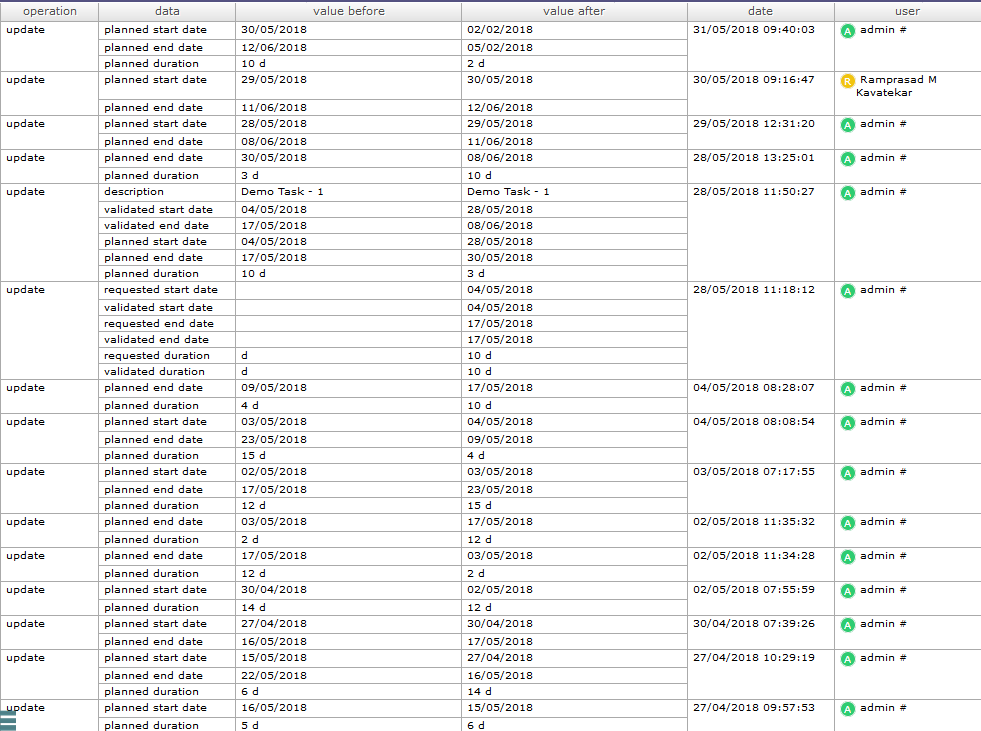
But as on today, these are the three resources who are assigned to this task.
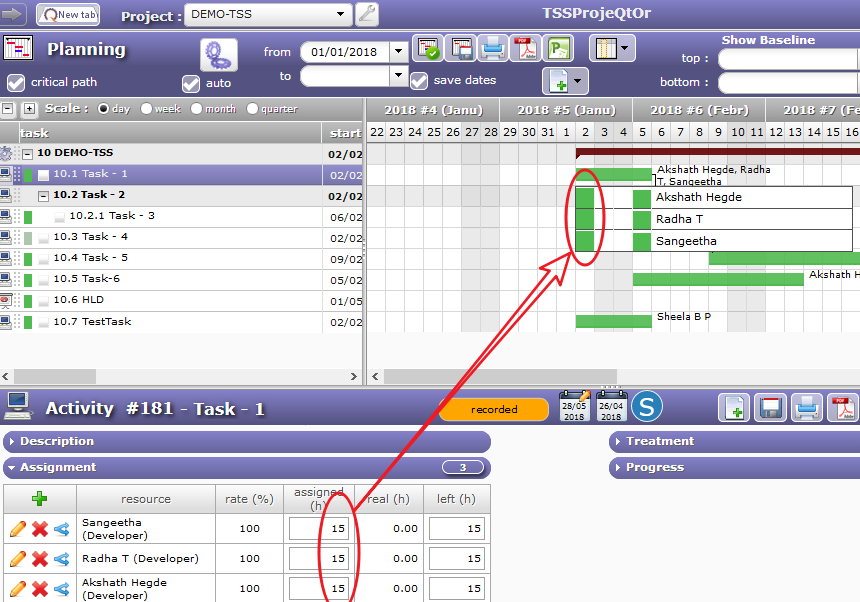
So regardless of such past activities, they should be treated as if we have assigned Task 10.1 to all three resources together.
hi
i am thinking about one thing ! Project under construction does not appear on real work allocation. Please check this box it could be our solution.
hi
i am thinking about one thing ! Project under construction does not appear on real work allocation. Please check this box it could be our solution.
In the Projects screen, the lower half of the screen has Treatment section. It shows the following status:
1. The under construction check box is cleared (no tick)
2. The handled check box has a tick in it. But its date was wrong: 4th April 2018. But the project was rescheduled (preponed) to week#5. Therefore I suspected that this could be a reason why the project does not show the tasks in Real work allocation. So I changed this date to 1st Jan 2018. But even now it does not show the planned work for the three resources in week#5 and #6.
You screenshot show that parameter "hide not handled tasks" is not displayed to user.
This means that this feature has been activated globally, on Global Parameter screen.
Then, users see on their Timesheet only activities that are in status handled (or over).
Change status of activities to see them, or disable this paramerter.
Thanks Babynus, for that tip!
Yes, I corrected that global parameter, and now all resources can see the tasks from the Timekeeper (admin-type) project.
To conclude, this is a minor bug: [BUG]
The Administration projects should be exempted from this global parameter, because the tasks in it are always "dummy", and all resources in the organization would be entering time tickets repeatedly against the same tasks.
Thus these admin-type tasks (leave, training...) cannot have any responsible person for them, any start date, any handled status, etc to begin with.
The Administration projects should be exempted from this global parameter, because the tasks in it are always "dummy", and all resources in the organization would be entering time tickets repeatedly against the same tasks.
No, I don't agree at all.
It is not because they are Administrative that they don't have a workflow.
I have "Holidays 2018" that is in progress, in have created "Holidays 2019" but it is still "recorded". It will be "In progress" in september. So I can prepare next Admoin tasks...
Oh ok, I see what you mean: All these tasks won't be handled till the project is actually started off. Yes, that's right!
BTW I had raised BUG#2 on 1st June. I await your response to that.
Thanks in advance!
The screen has other issue also: Although the Project filter is set to DEMO-TSS, it actually shows an element from another project called TDA for ESL. [BUG#2]
Filter on project is not applied to Timesheet.
On this screen, you need to see all entered work, whatever the project selected.
The screen has other issue also: Although the Project filter is set to DEMO-TSS, it actually shows an element from another project called TDA for ESL. [BUG#2]
Filter on project is not applied to Timesheet.
On this screen, you need to see all entered work, whatever the project selected.
OK, but if the filter does not work for a particular screen, it should be automatically hidden.
In other words, show a control only if it has an effect on the display. Otherwise hide it.